Skip to Main Content

ASD One Stop Shop

ASD How-To Guides & Documentation (Relocated to Box 02.2022)

ASD How-To Guides & Specific Documentation - Box

Any how-to guides for specific processes (residential shipping, scan & deliver, ILLiad loans, etc) have been copied and saved to ASD's shared Box account.

Creating "Ready-for-Pick-Up" Notifications in LibCal

Use this guide to send item pick-up notices to patrons when FOLIO, ReShare, or ILLiad are not allowing so

ReShare/EZB Processing in FOLIO How-To Guide

Opening the Mail How-To Guide

FedEx Shipping Manager: How-To Guide

FedEx Ship Manager How-To Guide

Learn how to prepare a shipment in FedEx Ship Manager

Coming soon...

  • Learn about the different types of reports
  • Locate reports / shipping data
  • Archiving / purging shipping data
    • In the meantime, if a message displays for purging the data, please cancel it! Data cannot be retrieved after it has been purged from the system.

Using Gumberg's Website How-To Guide

Alumni Card Creation and ASD Procedures

Basic Directions for Alumni Card Pickup Process:

  • Have the alumnus show you a valid government issued picture ID
  • Check their name in Folio.
  • Check in the barcode field for verification that the alumnus has being verified***
  • If the alumnus has been verified it will display the words:  Verified: followed by their  last and first name” (see below)


          ***Example:   Verified: Doe Jane

  • Delete the word Verified along with the alumnus’s name.


  •  Look in the black plastic tool box in the filing cabinet drawer.
  •  Take out the card that has the lowest number among all the four-digit cards.
  •  In Folio, scan in the barcode of the alumnus card.
  • Select “Save” in Folio to confirm the transaction.
  • Close Folio
  • Scan the code in check-out to see if the card has been registered

  • Retrieve the blue notebook (Alumni Names) in the filing cabinet drawer.
  • Record the name of the alumnus who picked up their card in the blue alumni notebook.
  • It is important to make sure that the alumnus card matches the name listed in Folio.
  • Record the following information

Card #

Barcode Number

Patron / Alumnus

Was Bob Mason Notified.

1313

60098601111111111

Doe, Jane

Check once he has been verified

  • An email will be sent to Bob Mason at Masonr@duq.edu.
  • CC the email to ask@duq.libanswers.com.
  • In the email, mention that the following alumnus has been verified and need card swipe access
  • Include the alumnus’s name, card number, and barcode number.
  • Write down the date when the email was sent.

updated by LD 1.16.2025

Alumni have access to the library during all open hours. In addition to borrowing materials, the alumni card allows users to swipe into the building during evening and weekend hours.

  • Users should show the alumni card when entering the building during card swipe hours. They also must show a photo ID when checking out materials and upon the request of a staff member.
  • Card swipe privileges are arranged after registration. Please let users know that it may take a month for them to gain swipe access. In the meantime, they may ring the doorbell for staff to buzz them in.
  • Lost cards should be reported to AUL of Access Services. Replacements are issued without charge.

Alumni and guests are eligible for courtesy computer & wifi access quotas. Printing privileges are not offered. See the print, scan, and copy page on our website.

Please see the Guest Login Credentials page for more information.  This service is currently unavailable 

As valued members of the university community, Duquesne alumni are encouraged to use Gumberg Library after they have graduated. Most services for alumni are available at no charge.

  • Access to the building during all open hours
  • Borrowing cards with checkout privileges
  • Courtesy wifi access and printing quota This service is no longer available

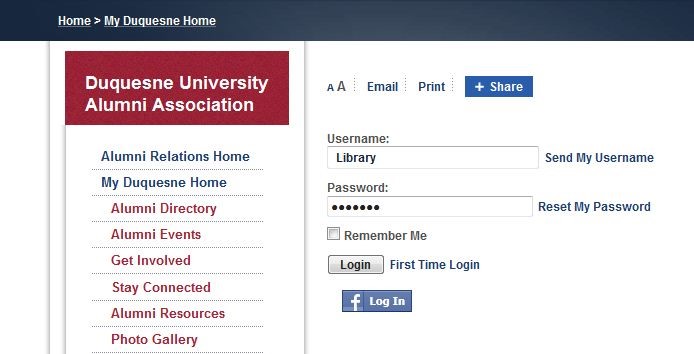
  • On the right side of the page, click the Login button. When prompted, enter:
    •         Username: Library
    •         Password: Alumni1

  • After logging in, click the Stay Connected link under the My Duquesne Home menu on the left. The alumni directory is listed in the middle of the page. Click on the link to access the directory.

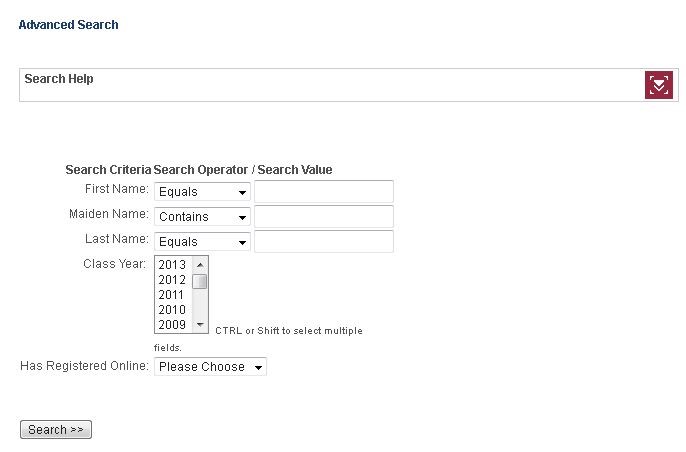
  • Search the user’s first and last name. If you have trouble locating the person, ask if he or she has had a name change since his or her time at Duquesne.


DO NOT USE - KEEP WHILE WE TRY NEW METHOD -alh 1.16.2025

Aumni can register for privileges online.

  1. Log into LibAnswers
  2. Locate appropriate alumni form (in the Forms queue)
  3. Check alumni database and validate alumni status (instructions to the right)
  4. Create alumni account in Sierra 
  5. Issue card (kept in black box in filing cabinet drawer marked "Patron Forms" at Visitor Registration)
    • Log first & last name, card number, and barcode in the log kept with ID cards
    • If stock is low, please alert the supervisor on duty or AUL of Access Services
  • If user is present:
    • Check photo ID and give user card
    • In LibAnswers
      • Use "Alumni Card Available" macro 
      • CC MasonR@duq.edu (this triggers Public Safety to create library access for this card/patron)
      • Send and Close ticket in LibAnswers
  • If user is not present:
    • Place form and card in prepared envelope, fill in the label, file alphabetically in folder above laptops
    • In LibAnswers
      • Use "Alumni Card Available" macro 
      • Read, follow, then DELETE red text
        • Enter info in table provided in macro
        • CC both:
          • MasonR@duq.edu (triggers Public Safety to create library access for this card/patron)
          • Patron's email
      • Send and Close ticket in LibAnswers
    • When user picks up card, ask for photo ID